

On your mobile Android phone, download this APK file:
Save it in your phone storage – you can try to install it by opening it and following the prompts. You may have to first enable security settings:
By default, Android blocks the installation of “unknown apps.” You must grant special permission one time. Depending on your Android version and device model, the steps may vary slightly, but generally, it goes like this:
Version One
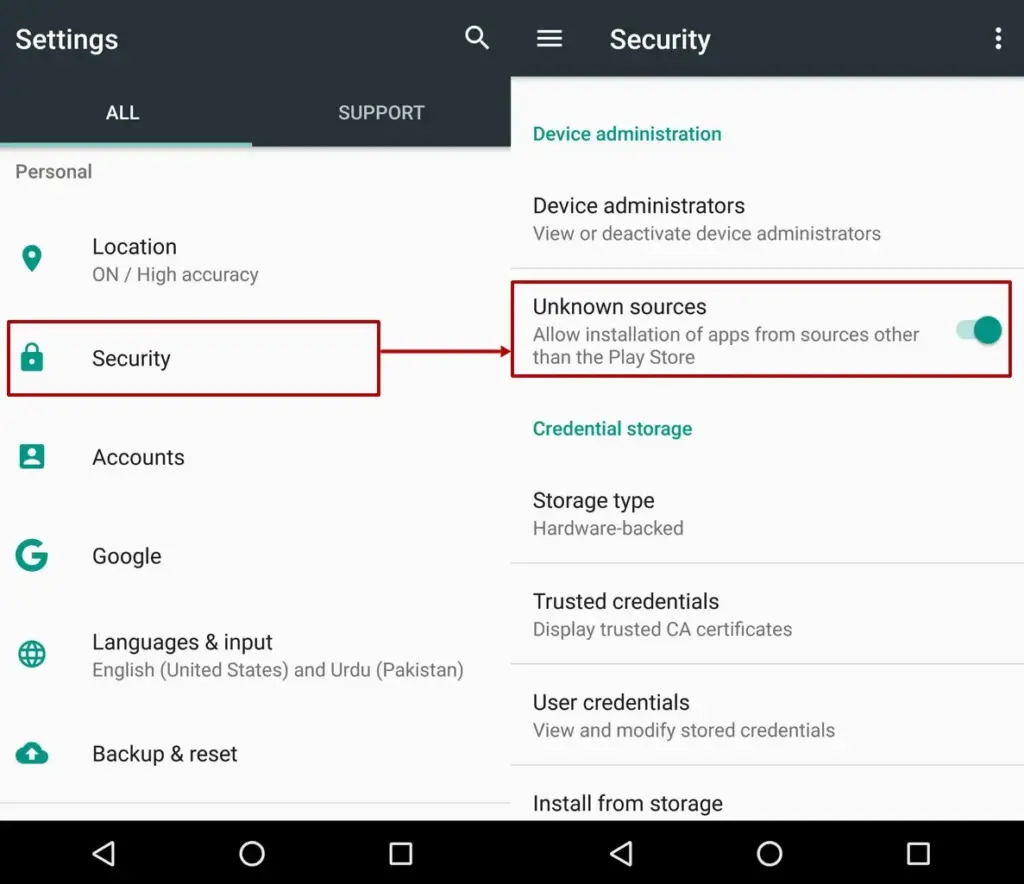
- Open Settings: Go to your phone’s general settings.
- Security & Privacy: Look for a menu option often labeled “Biometrics and Security,” “Security,” or “Privacy.”
- Enable Unknown Sources: There should be an option to allow the installation of apps from third-party sources.
- App-Specific Permission: Some Android versions require that you give permission to each specific app (e.g., Chrome or a file manager) to install APKs.
Version Two
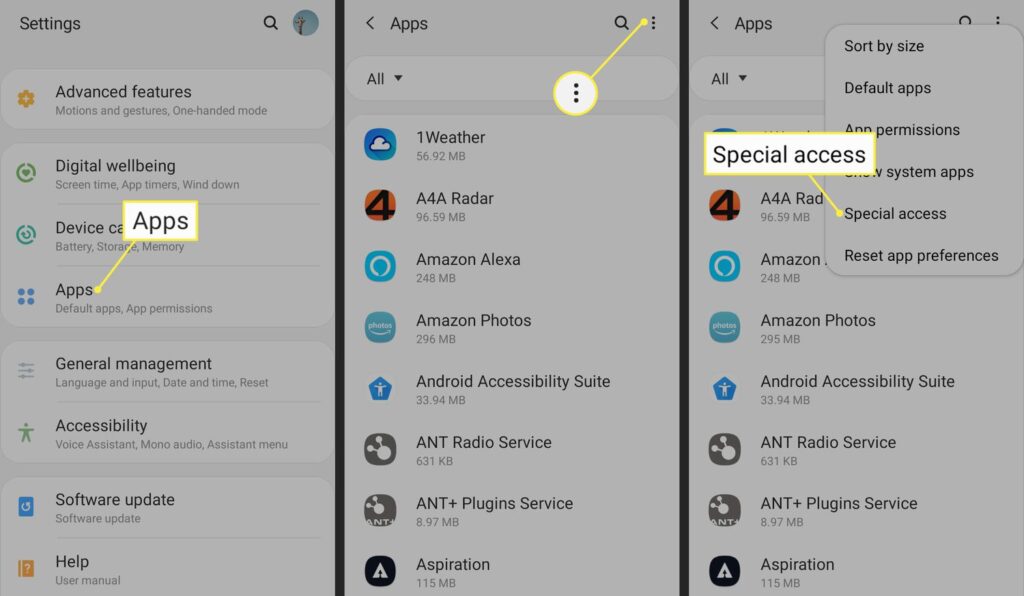
- Open the Settings app and tap Apps or Apps & Notifications.
- Tap the three dots in the upper-right corner. If you don’t see that, skip down to the next step.
- Tap Special access, or Special app access on some Android devices.
The exact names of these settings can differ based on the manufacturer or Android version. If you can’t find the right option, try searching online for “install unknown apps + [device name/Android version].”
Once you’ve granted permission, you can start the installation process. Click the APK file and follow the prompts.
If you see a security warning, you can enable installations from unknown sources for the specific app (if not already done). Then follow the on-screen instructions (e.g., “Next” or “Install”).
After a few seconds, the app is installed and will appear in your app menu. You can use it just like any other app.


